How to Set Up Team Scheduling on ServiceLeo
A complete step-by-step guide to inviting team members, assigning roles, and configuring assignment rules — so your booking page distributes appointments across your whole team automatically.
Alex Chen
Customer Success
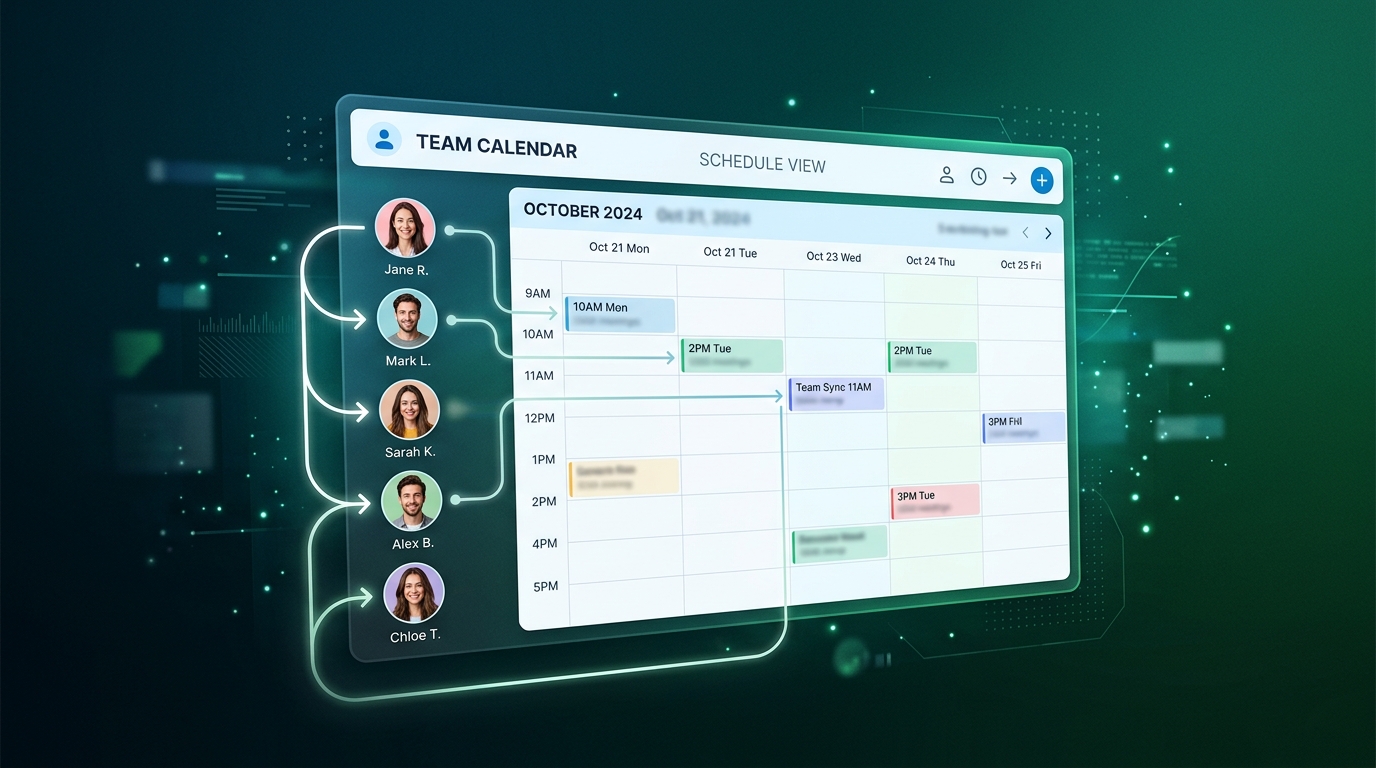
Team scheduling lets multiple people in your organization share a single booking page — so clients always land with the right person, automatically. This guide walks you through every step: inviting members, setting roles, enabling team scheduling on a page, and choosing the assignment rule that fits your workflow.
Step 1 — Invite Your Team Members
Head to the Team menu in your ServiceLeo account and click Invite team members. Enter one or more email addresses and select the role you'd like them to start with. Each person will receive an email invitation to join ServiceLeo. Once they accept, their status in your team profile changes to Active — and they're ready to be added to any booking page.
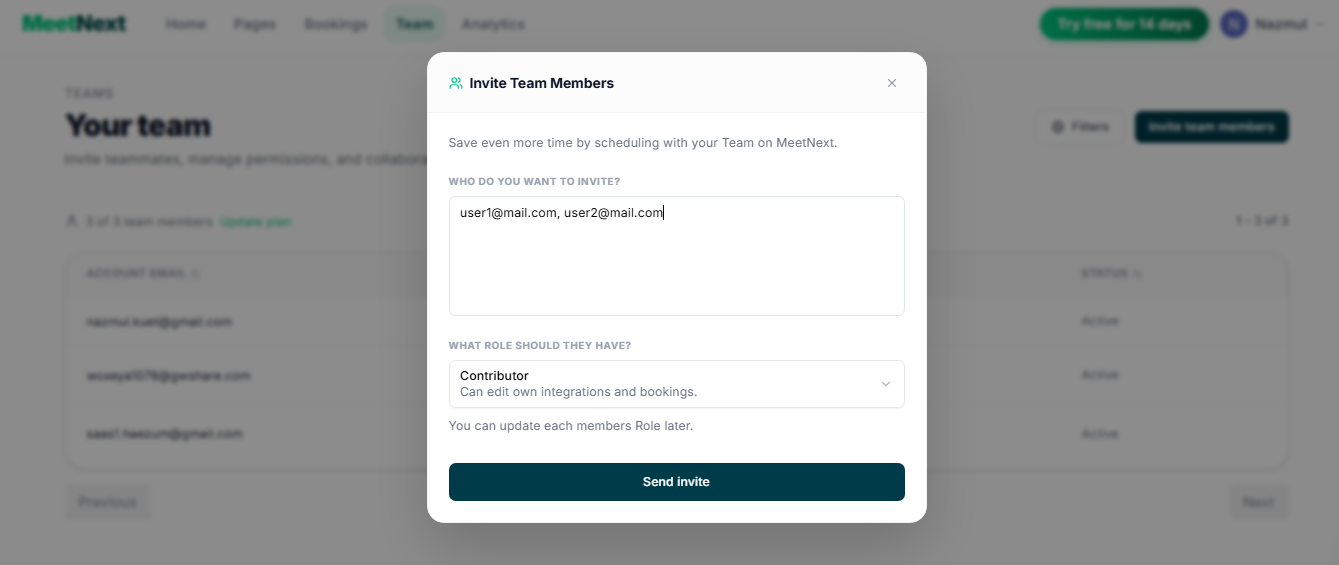
💡 Tip: You can invite multiple teammates at once by separating their email addresses with commas. You can also update any member's role at any time from the Team page.
Understanding Team Roles
Every team member is assigned a role that controls what they can see and edit within your account. Choose carefully — roles define boundaries for your whole team's workflow.
Contributor
The most limited role — ideal for team members who manage their own schedule only. Contributors can edit their own integrations (calendar connections, video tools) and view or manage bookings assigned to them, but they cannot touch other members' pages or settings.
Editor
Everything a Contributor can do, plus the ability to edit booking pages they've been assigned to. Editors are great for team leads or senior staff who co-own certain booking pages but shouldn't have full account access.
Administrator
Near-full account access. Administrators can create and edit any booking page, manage team members, and adjust account-wide settings. The one exception is billing — only the account owner can manage subscription and payment details.
Step 2 — Enable Team Scheduling on a Booking Page
Open the booking page where you want to add team members. In Calendar Setup, find the Team Scheduling toggle and switch it on. This enables the team scheduling features for that page and unlocks the assignment rule settings below.
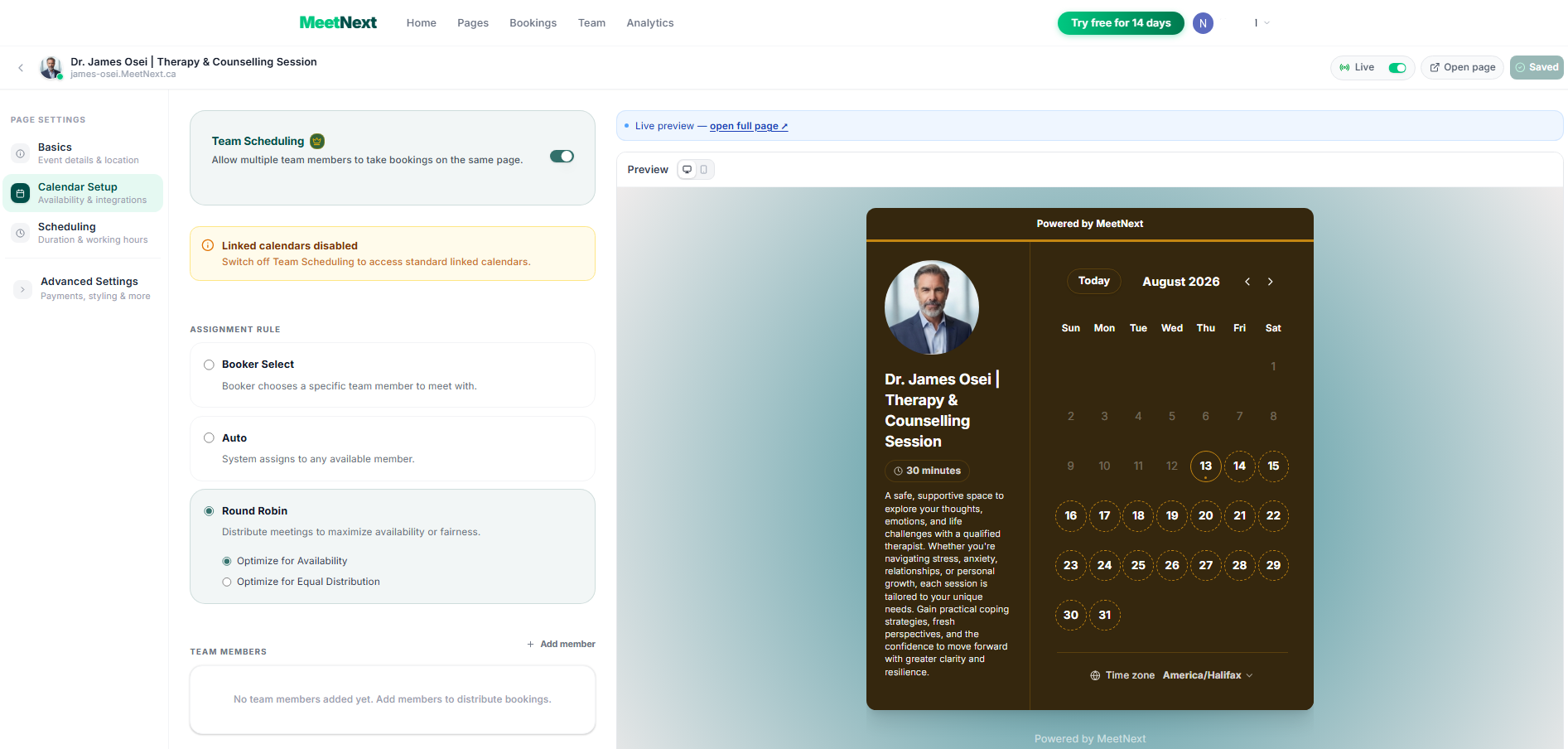
Once team scheduling is active, scroll down to the Team Members section and click + Add member. Select the team members you want to act as providers on this page. Only Active members in your team are shown here.
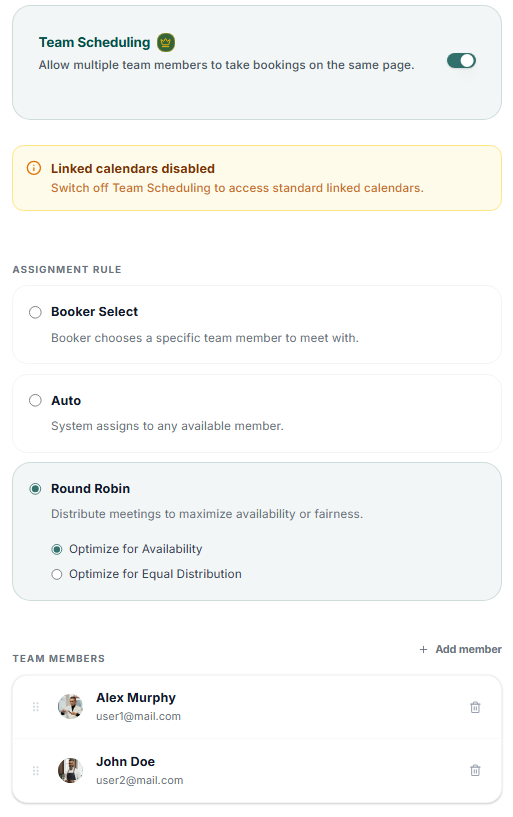
⚠️ Note: When Team Scheduling is enabled, linked personal calendars on that page are temporarily paused. Switch Team Scheduling off to restore standard calendar connections for individual use.
Step 3 — Choose an Assignment Rule
The assignment rule controls how incoming bookings are distributed among your team members.ServiceLeo offers three distinct modes, each designed for different team dynamics and client expectations.
Booker Select
The person booking the appointment chooses which team member they want to meet with. This is ideal when clients have established relationships with specific providers — such as a returning patient choosing their therapist, or a customer who prefers a particular sales rep.
Options
Auto
The system automatically assigns the appointment to one team member — no choice presented to the booker. This is the cleanest, most frictionless experience for clients and works well for high-volume teams where the specific provider doesn't matter.
Options
Round Robin
The system rotates appointments among team members automatically. Unlike Auto, Round Robin is optimized specifically for balanced rotation — great for sales teams, support queues, and any scenario where even distribution is a top priority.
Options
You're All Set
Once you've invited your team, enabled team scheduling on a page, added the right members, and selected an assignment rule — your booking page is fully equipped to handle team-based scheduling. Clients will book in seamlessly, and appointments will be distributed exactly the way you've configured.
You can always adjust the assignment rule, add or remove members, or change roles as your team grows. ServiceLeo adapts to your workflow — not the other way around.
Put this into practice with ServiceLeo
Set up your first booking page in 10 minutes. Free forever, no credit card required.
Start for free